Lesson 12 of 19 · ~6 min
Set up alerts & notifications
You'll learn: Route severity escalations to email, Slack, or webhooks so your team gets paged without watching the dashboard.
Admin or operator role on your org.
01 Open the notifications page
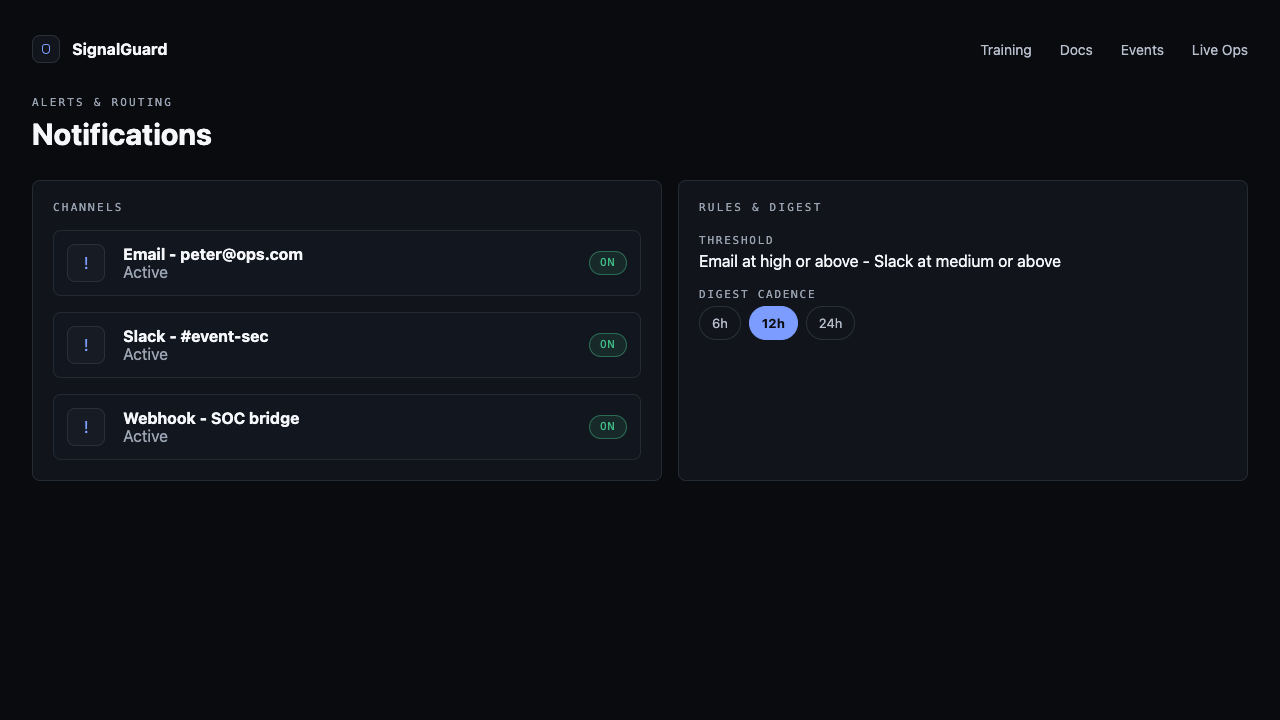
Click your account menu and pick Notifications, or go to /notifications. Settings here apply org-wide and stack with per-event settings.
02 Add a channel
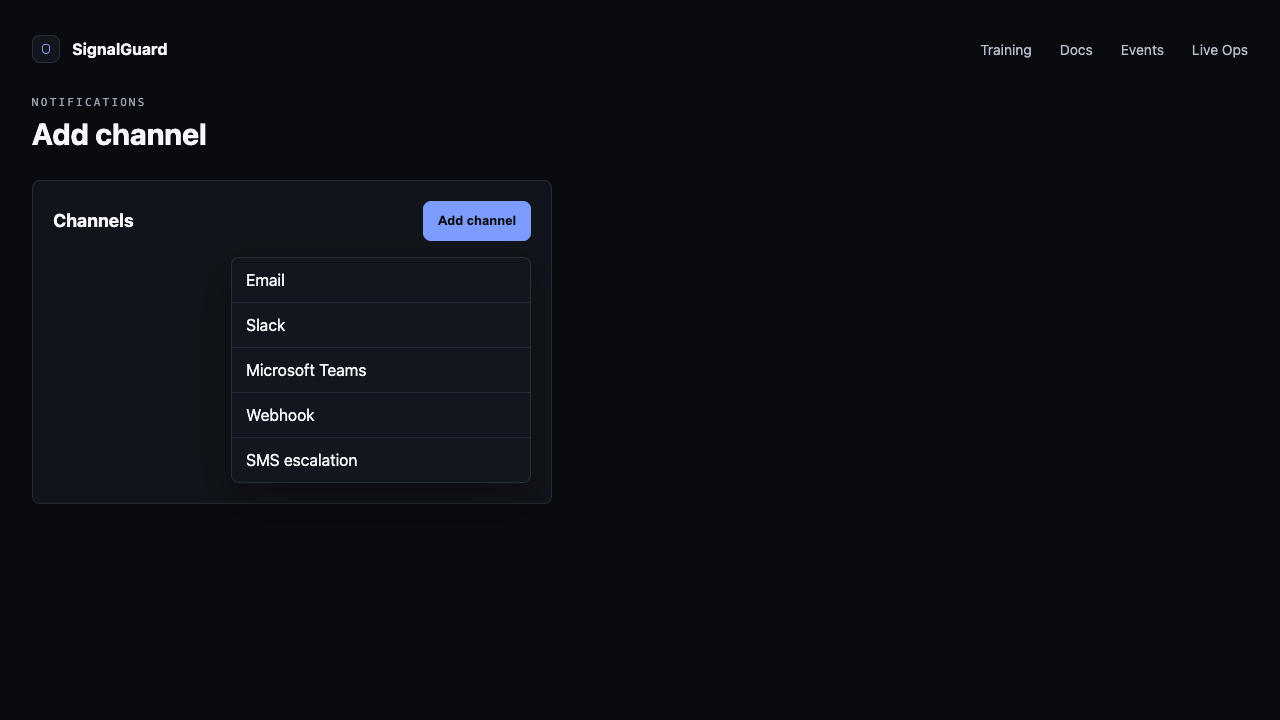
Click Add channel. Pick a type — Email, Slack webhook, Discord webhook, generic webhook, SMS. Each prompts for the destination (email address, webhook URL, phone number) and a label. Save.
03 Set escalation thresholds
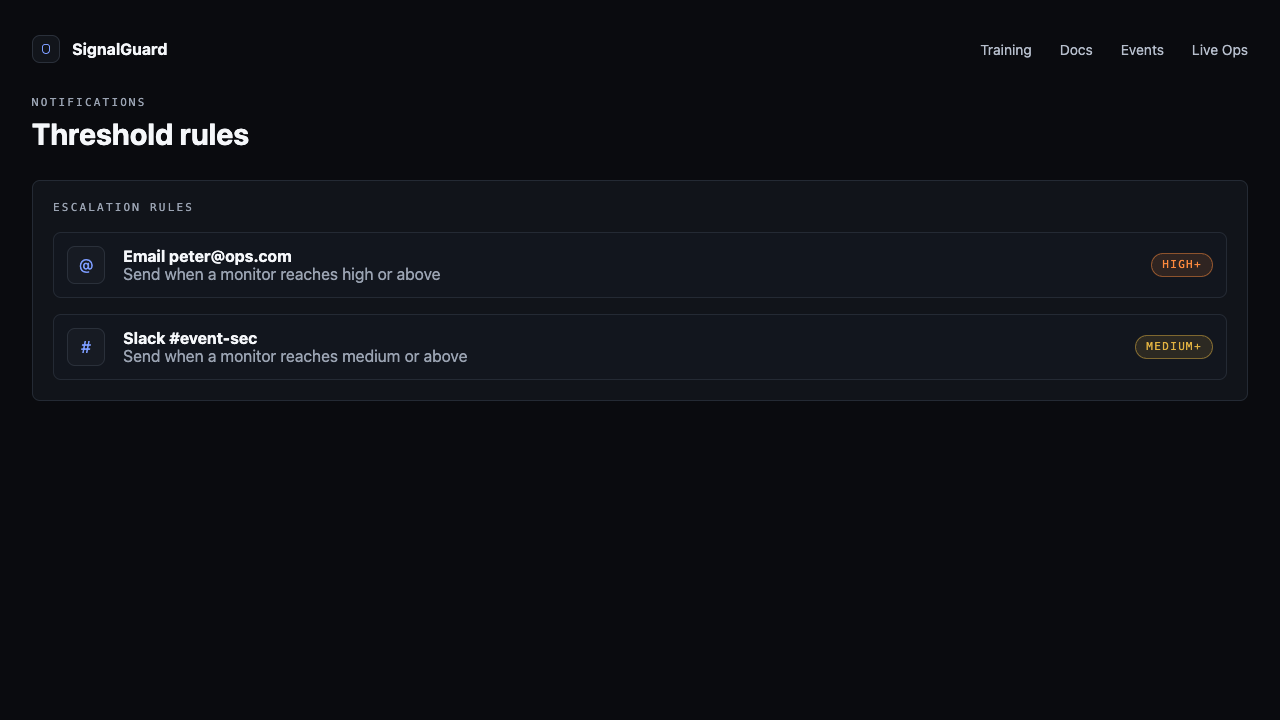
The Alert thresholds rules say "fire to channel X when severity hits Y or above". The default is high on every channel. Tighten to critical for off-hours pages; loosen to medium for daytime ops where someone's watching.
04 Pick a digest cadence
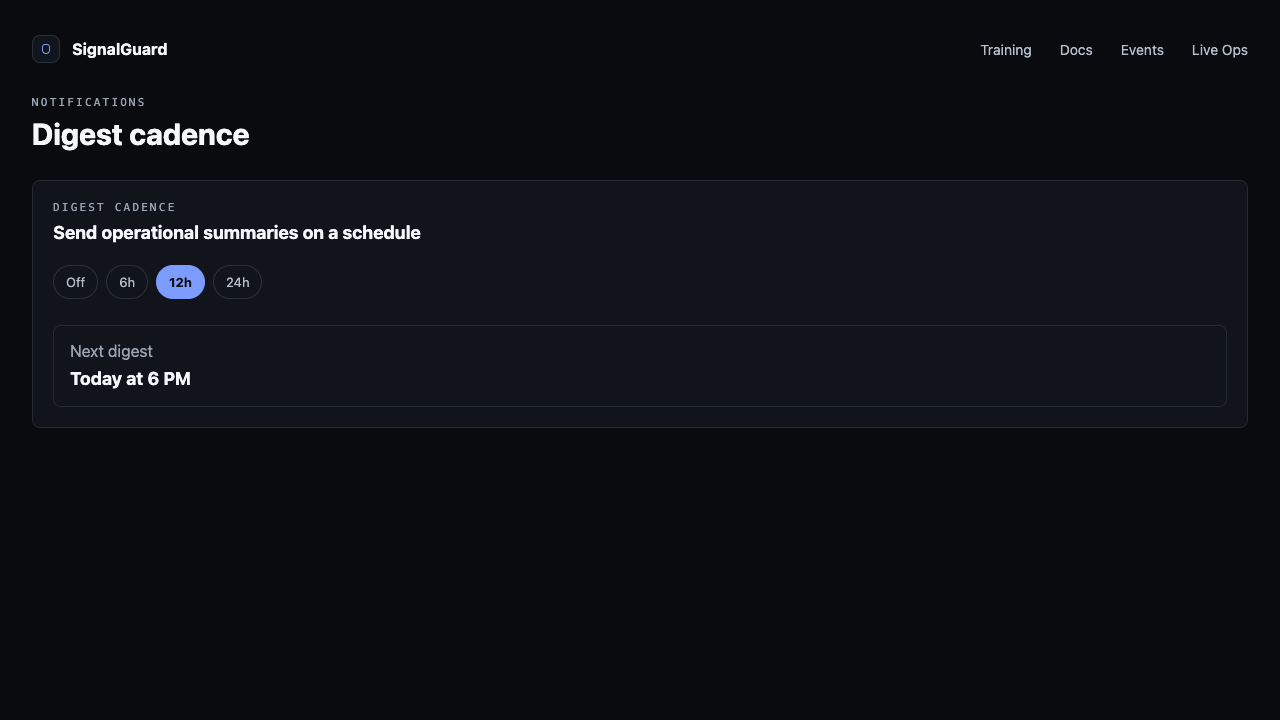
Set the periodic digest interval for non-critical activity — Off / 6h / 12h / 24h. Rolls up everything medium and below into one summary so your inbox isn't flooded.
05 Test the channel
Each channel row has a Send test button. Use it before relying on the alert in production — a mistyped webhook URL or revoked Slack token silently drops alerts otherwise.
Tips
- Slack webhooks should be incoming-webhook URLs scoped to a single channel. Don't reuse the same URL for multiple destinations.
- Per-event notification overrides land on /event settings — useful when one event has a different on-call than your defaults.
- If alerts stop arriving, check the audit log on /notifications — every fire (and every drop) is recorded with the reason.