Lesson 11 of 19 · ~5 min
Set up your organization & team
You'll learn: How to build your organization tree, switch your active scope, and manage teammates and roles so people see exactly the events and tours they should.
You need to be signed in and an admin on at least one organization node.
01 Open your organization tree
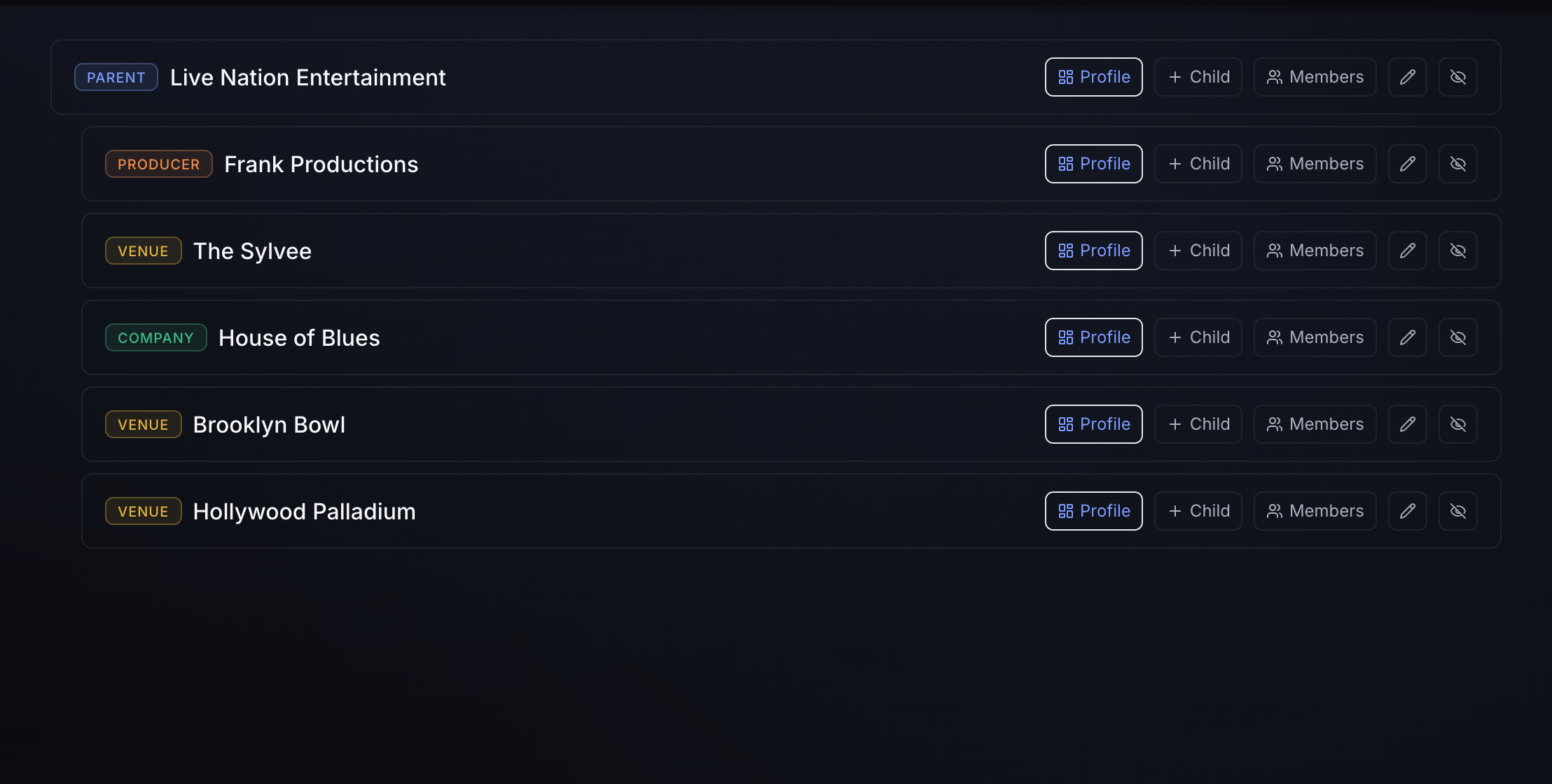
Click Organization in the top nav (or go to /org) to land on the Organization tree page. This is your company hierarchy — parents, companies, venues, and producers nested to any depth. The eyebrow shows a live node count.
- You only see the nodes you're a member of, plus everything beneath them. If the page says No organizations visible, you haven't been added to any node yet.
- Each row carries a type badge and links to that node's Profile (
/org/<id>) for summary stats.
02 Add nodes to build the hierarchy
Use Add node (top right) or the Child button on any row to open the add-node modal. Pick a Parent, choose a Type — Company, Venue, or Producer — and give it a Name.
- You need admin on the parent node to add a child; otherwise you'll see You need admin on the parent.
- Use the pencil icon to rename a node and the eye icon to deactivate it. A deactivated node stays in the tree but renders struck through and marked inactive — nodes are never hard-deleted from this view.
03 Add teammates and set roles
Click Members on any node to open its members panel. Each member shows their email and role. To add someone, enter their email, pick a role — viewer, operator, or admin — and click Add member.
- viewer and operator are read-only at their scope; admin can manage that node's members and name, and add children.
- The teammate must already have a SignalGuard account. If you see No user with that email, have them sign up first, then add them.
- Use the x next to a member to remove them. You can't remove or demote the last admin of the top-level org.
04 Switch your active scope
If you belong to more than one node, a Switch scope pill appears in the top nav showing your current scope's name. Click it to open the dropdown and pick a different org or sub-org. Rows are tagged PARENT (covers all sub-orgs beneath it), ACTIVE (your current scope), and your role.
- Choosing a PARENT row sets your scope to that org and all of its sub-orgs; choosing a specific sub-org narrows you to just that branch.
- The pill is hidden when you have a single org with no sub-orgs — there's nothing to switch between.
05 See how scope filters your work
Switching scope reloads the page so every downstream view carries your new active scope. After a switch, Events, Tours, and the Dashboard all show only what belongs to that org or sub-org branch.
- If an event or tour you expected is missing, you're probably scoped too narrowly — switch up to the PARENT scope to see everything beneath it.
- Your scope is remembered across sessions, so you'll return to the same view next time you sign in.
Tips
- Mirror your real org chart: nest venues under their company and producers under the parent so scope filtering matches how your teams actually work.
- Grant the narrowest role that works — most teammates only need viewer or operator; reserve admin for people who manage structure or membership.
- Add members at the lowest node that fits their job. A member added to a parent node sees everything beneath it; a member added to one sub-org sees only that branch.
- Always keep at least two admins on your top-level org so you're never locked out — the system blocks removing or demoting the last one.
- Deactivate nodes you've retired instead of trying to delete them; they stay in the tree for history but drop out of day-to-day views.