Lesson 8 of 19 · ~5 min
Manage your Events portfolio
You'll learn: How to filter, sort, search, and page through every event you've saved for monitoring on the unified /events list.
You need at least one saved event — every logged-in scan saves here automatically.
01 Open your portfolio and read the header
Go to /events ("Your monitored events"). This is the single list of everything you've saved for ongoing scans — standalone events, tours, and festivals together. The eyebrow meta at the top reads your live total, for example 12 monitored · 3 expired, so you can size the portfolio at a glance before you start filtering.
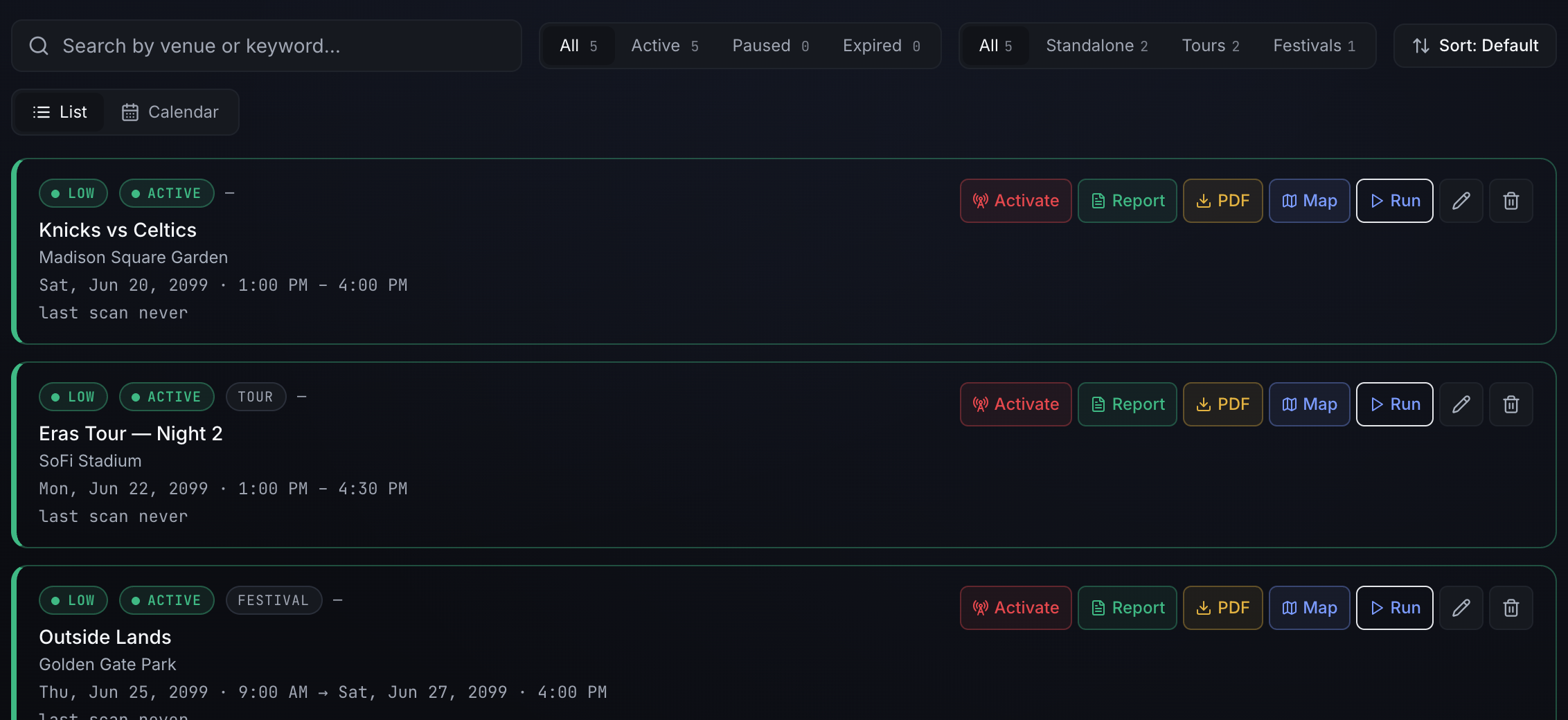
02 Narrow by Status and Type
Two pill groups let you slice the list, and they compose — set both and they apply together.
- Status —
All,Active,Paused,Expired. Status is derived from the event dates client-side: an event whose window has already passed reads Expired, anything upcoming or in progress reads Active. Paused is honored only when the event is explicitly paused. - Type —
All,Standalone,Tours,Festivals. Each non-standalone event also carries a small type chip on its card; clicking that chip applies the matching Type filter for you.
03 Read the count badges
Every Status and Type pill shows a count badge beside its label. These counts are absolute — they're computed from your whole portfolio, not the current selection — so the numbers don't move as you switch filters. Use them to spot, say, how many events are Expired or how many are Tours before you click in.
04 Search and sort by date
The search box ("Search by venue or keyword…") matches against the event name, venue, and keywords, and stacks on top of your Status and Type filters.
- The Sort button cycles through three states each click:
Sort: Default→Date: Newest→Date: Oldest. - Default keeps the incoming risk-ranked order (active first, paused and expired at the bottom); the two date options reorder by event date and sink undated events to the end.
- Your sort choice persists across visits.
05 Switch views and page through results
Use the List / Calendar toggle to flip between the row list and a month grid; both honor your active filters, and the view choice persists across visits.
- In List view the results paginate. Set Per page to
25,50, or100, and read thea–b of nrange to see where you are. - The numbered pager windows around the current page with ellipses;
‹and›step one page at a time. - Changing a filter, search, sort, or page size resets you to page 1.
Tips
- Status, Type, and search all compose — combine them to answer questions like "active tours at this venue" in one pass.
- The pill count badges stay fixed as you filter, so they're a reliable portfolio tally even mid-drill-down.
- Because Expired is derived from event dates, an event flips to
Expiredon its own once its window passes — no manual cleanup needed. - Click a card's type chip to filter the list to that type instantly instead of reaching for the Type pills.
- Pagination is List-view only; switch to Calendar when you'd rather scan by date than page through rows.