Run your first scan
You'll learn: Submit a scan on /scan and read the severity-scored brief that comes back.
A signed-in account. Free tier is enough to run an initial scan.
01Open the scan form
Click Scan in the top nav, or go to /scan directly. The form is the only place where one-off, immediate scans are run.
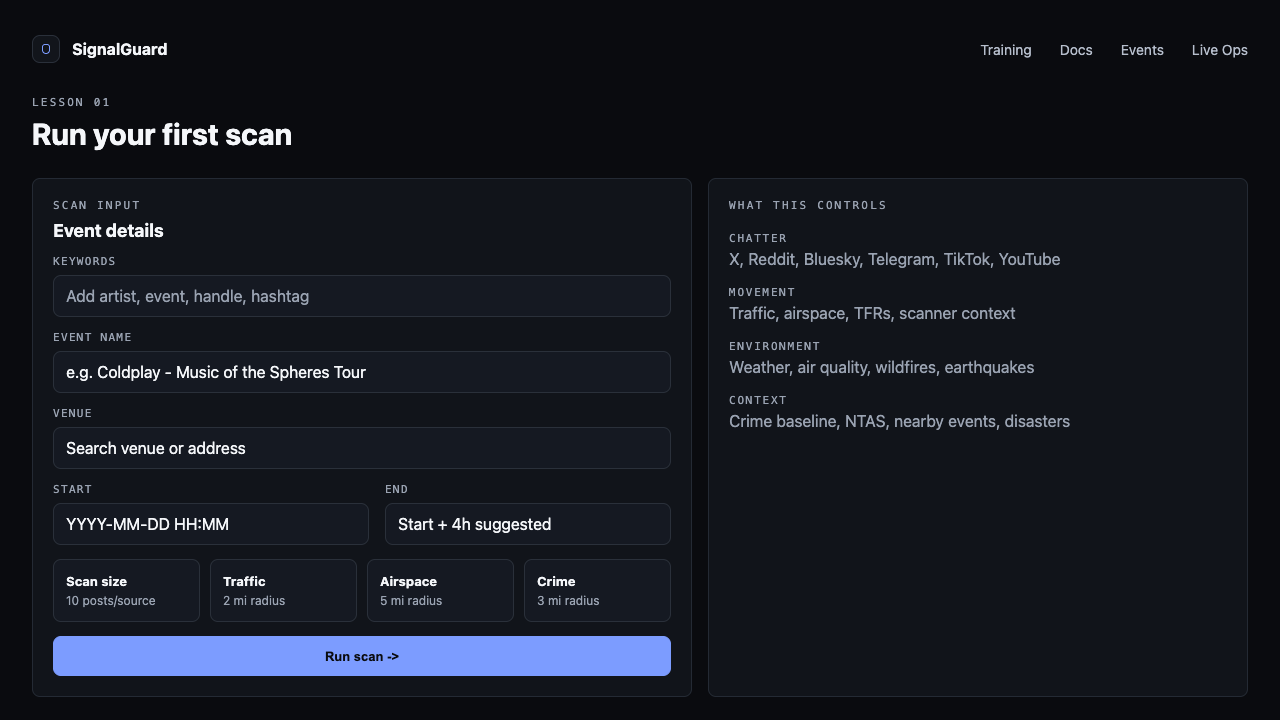
02Add search keywords
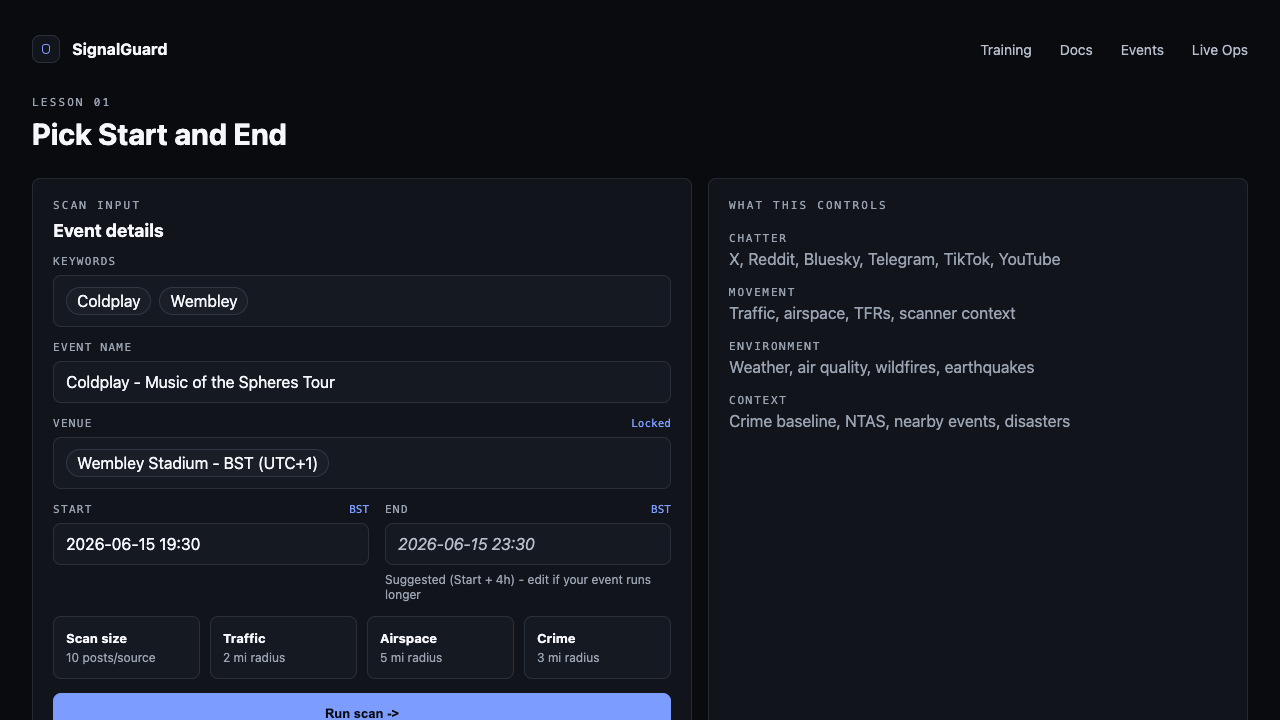
Type a keyword, an artist name, or an @handle in the Keywords field and press Enter (or comma) to lock it as a chip. Add as many as relevant — chatter signals (X / Reddit / Bluesky / Telegram / TikTok) will scan posts matching any chip.
Keep keyword scope tight. "Coldplay" alone matches every Coldplay post on Earth; "Coldplay Wembley" or the event hashtag scopes you to this show.
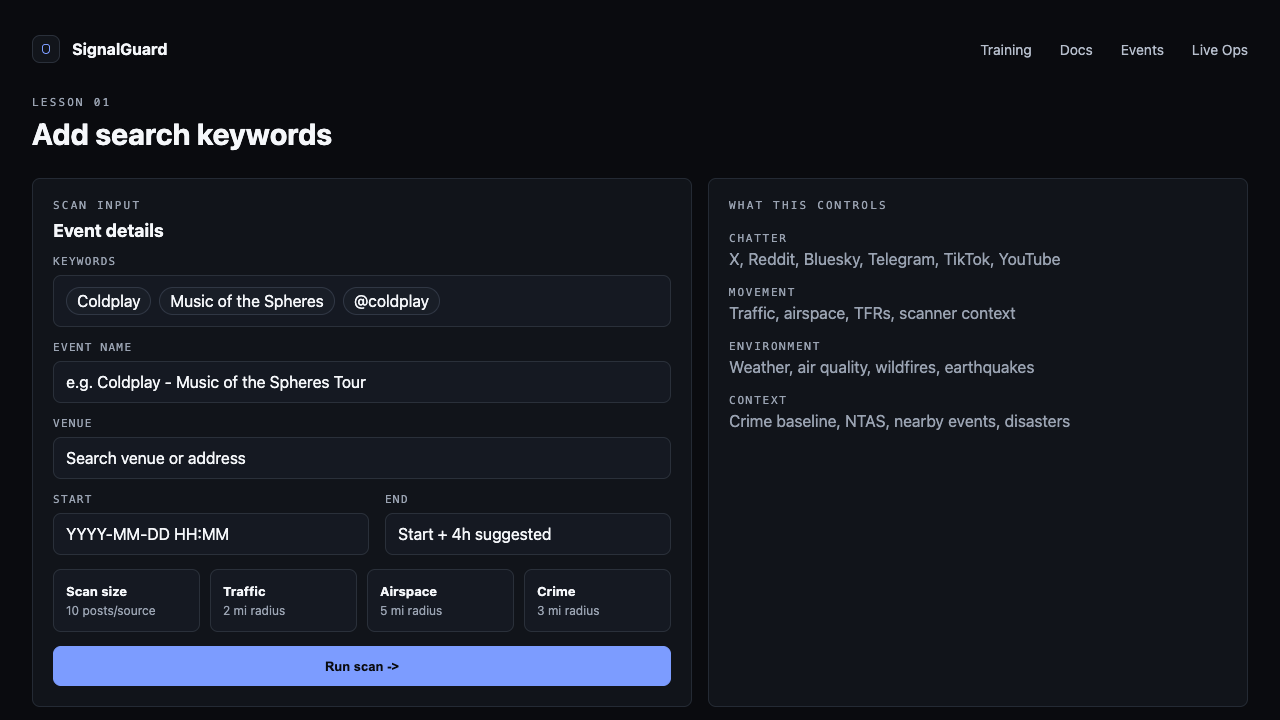
03Give the event a name
Event name is required. It's what shows on dashboard cards, the Live Monitor header, and as the title in your saved-events list. Use the actual event name (e.g. Coldplay · Music of the Spheres Tour) — not a search keyword.
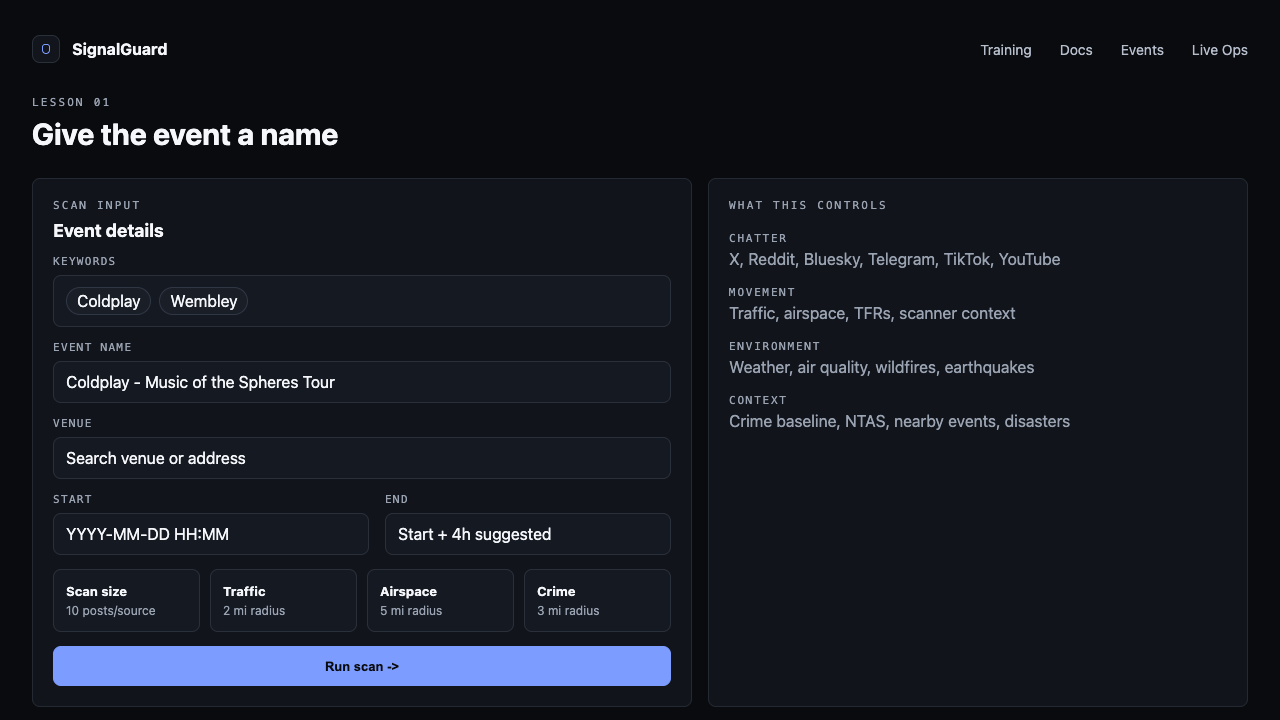
04Lock the venue
Type the venue name or address. After a beat, an autocomplete dropdown shows matches from OpenStreetMap. Click one (or press Enter on a typed value) to lock it as a chip. The chip shows the venue's resolved timezone — e.g. Wembley Stadium · BST (UTC+1). The TZ matters because your start/end times are interpreted in your local zone, not the venue's.
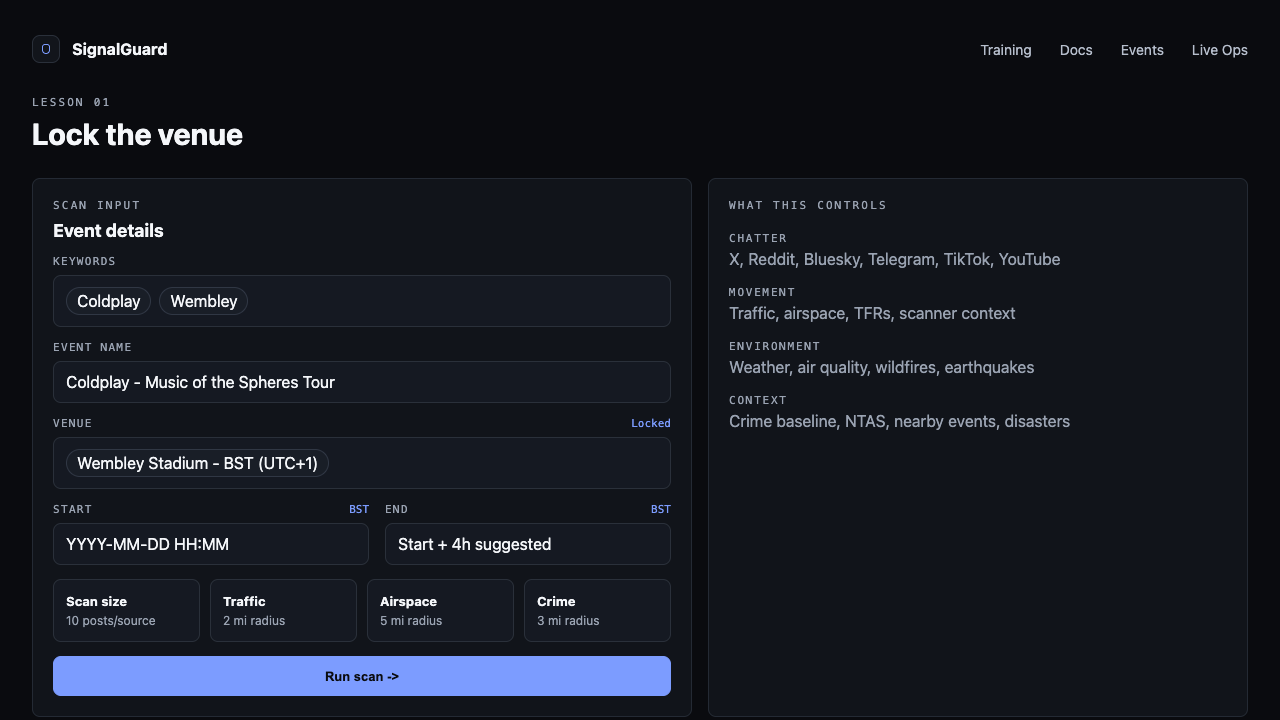
05Pick Start and End
Set the Start datetime first. End auto-fills with Start + 4 hours as a suggestion (italic). Edit End directly if your event runs longer — festivals, conferences, residencies. End must be strictly after Start; the field shows a red error inline if not.
06Pick scan size and radii (optional)
Defaults are sane: Scan size 10 posts per chatter source, Traffic 2 mi, Airspace 5 mi, Crime 3 mi. Bump scan size to 50 or 100 for high-stakes events where you want a wider chatter sample. Tune radii to match your venue's footprint — a 2-mile traffic radius is fine for a downtown arena; a 5+ for a stadium with regional draw.
07Click Scan
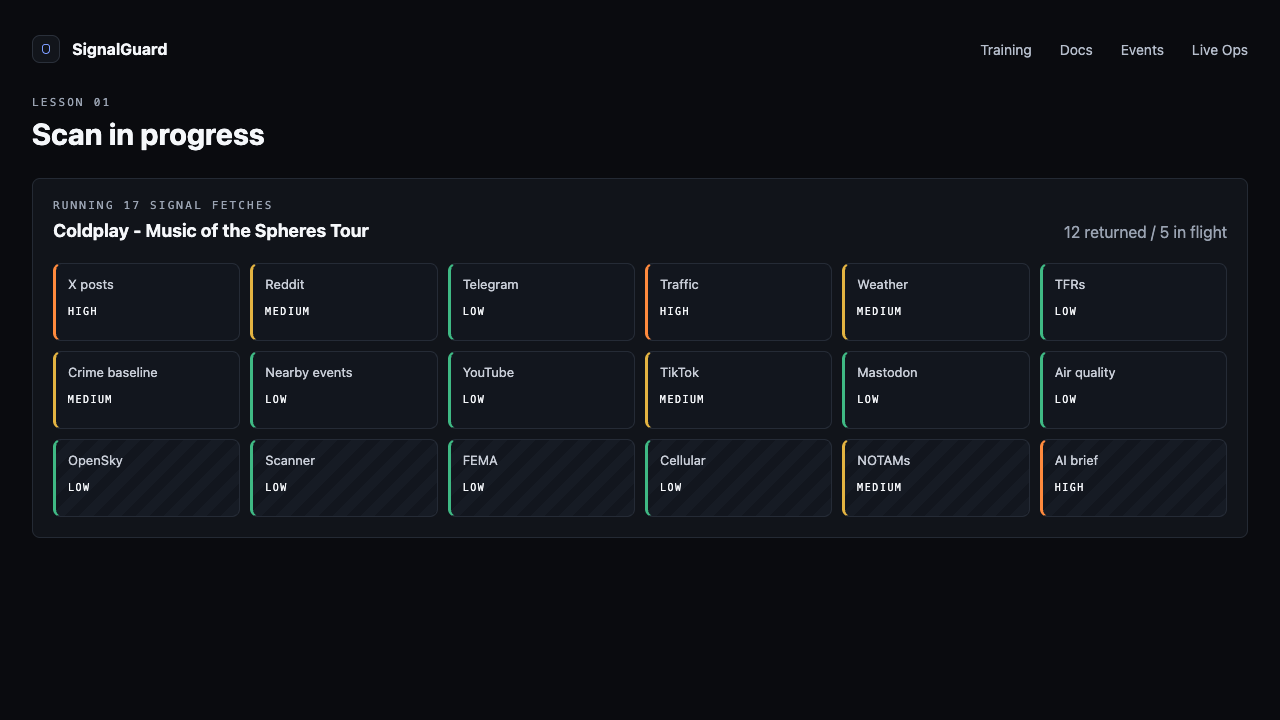
The pipeline kicks off about 17 parallel signal fetches and the AI brief synthesis. You'll see a progress strip of signal tiles filling in over ~30-45 seconds. When it lands, the page scrolls to the Threat Brief.
08Read the brief
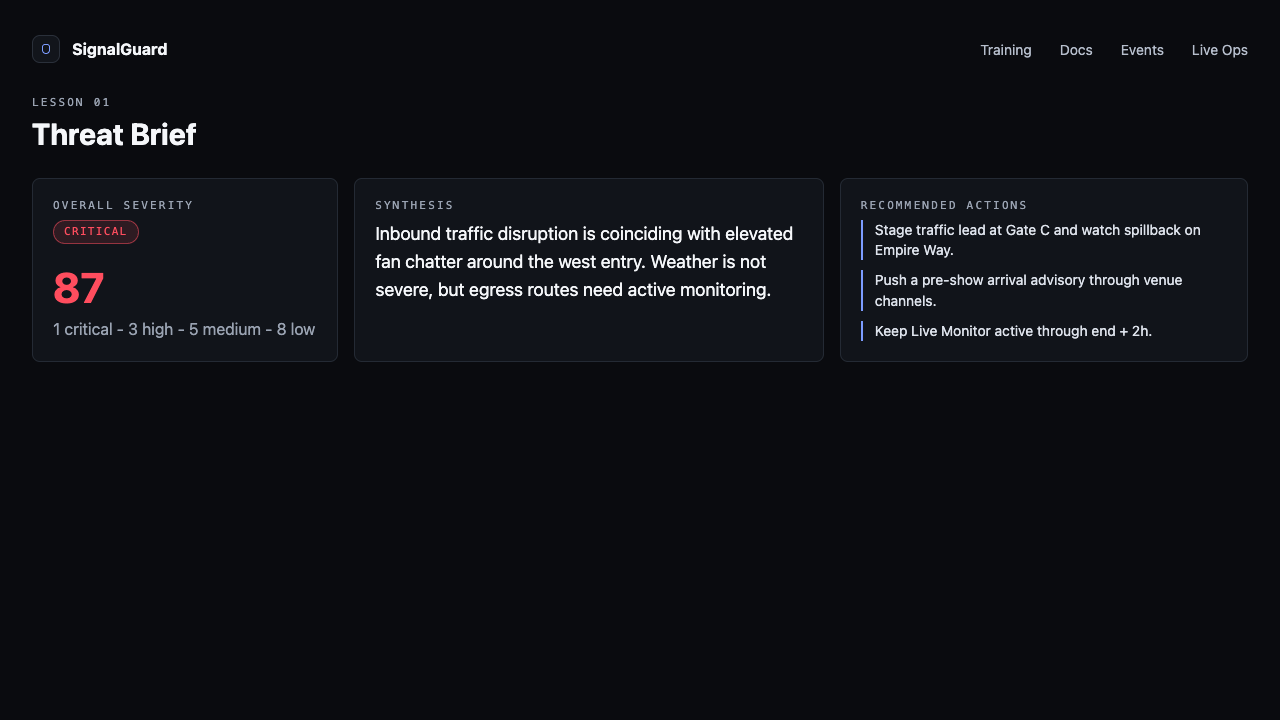
The brief opens with an overall Severity pill (critical / high / medium / low / clear), an AI Synthesis paragraph, and a numbered list of recommended Actions. Below that, every signal that returned data is rendered as a card with its own severity and headline. Scroll through to spot what's elevated.
Tips
- Bookmark frequent venues — autocomplete remembers them within a session, but a saved-event row from Lesson 6 makes this permanent.
- Don't add irrelevant keywords just to inflate the chatter count. Off-topic posts dilute the AI synthesis.
- If a signal card says "geocode failed", the venue address didn't resolve — re-pick from the autocomplete instead of typing freeform.